



Configuring Global Address Book in Dynamics 365, Join us here!
Configuring Global Address Book in Dynamics 365,

Before Going into the configuration article here is the link of Global address book introduction blog:
Global Address Book IntroductionConfiguration
In the Preparation and analysis Phase
First of all, you need to determine the reasons for creating and maintaining the Global address book “GAB” and other secondary kinds of address books and compile the needed information from your client as a functional consultant for best usage of that module that come from the compatibility with organisation business nature and needsThe following are check lists of some examples of the information that you can gather in your preparation and analysis step:
- What sequence should names be displayed in for party records of the person type? For example, one sequence is last name, middle name, first name.
- Should party records be deleted from the address book when the role record is deleted? For example, if a customer record is deleted, should the party record also be deleted?
- When a new record is created, should users be notified if a duplicate record is found in the global address book?
- Should the Data Universal Numbering System (DUNS) number be included in a party record’s information? “This point related to United States users.”
- When a party record is created in the global address book, do you want a default party type, person, or organisation?
- Which user roles should have access to the private addresses and contact information of party records?
- How many other address books will be created and will be on which level “Company or Business line” and will be available for all employees or a specific team.
You can add in the comments any other point that you consider in your GAB module preparation phase.
In the Setup “Execution” phase
Global address book parameters
From the Organisation administration >Global address book> Global address book parameter Path you will open the below page
In the General Tab.
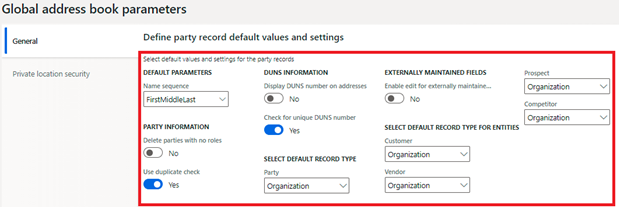
As we can see it’s a general control page to set the default parameters of the Global address book like the name sequence , records type , DUNS number activation , check parties duplication and the option of deleting parties with no rules.
In Private Location security Tab.
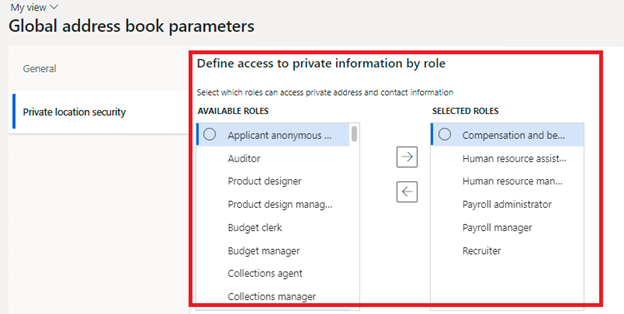
Here you can select roles that can access the private address and contact information.
Need to know what we mean by Roles in D365 ,Subscribe to us and wait the upcoming blogs. " till we meet there roles are the employees positions "
Address Books
For Creating private address books, you can click on address books from the Global address books drop down menu.

By clicking new you have created a secondary address book which can be assigned to a team of employees who only can manage this book , but remember they must be assigned to the roles that defined in the parameters.
Relationship Types
In addition to needing to track all of the common information within Dynamics 365, like the Customers and Vendors, there is a lot of relationship information that you may want to record as well.
You may want to track relationships between companies such as lenders, subsidiaries …..etc., between people such as recruiters, family members …….etc. or even between companies and people like board members, founders etc. The good news is that through the Global Address Book you can do just that.
By That we finally have a way to model the six degrees of separation “Kevin Bacon” (To HR Specialist Readers, please transfer your business knowledge in the comments regarding this point”).
It’s also a good feature which will be required to satisfy your accounting external auditors regarding the related parties standard IAS-24.

You can click on relationship types listed under Global address book.
You can define relationship type by
1-Clicking new
2-writing in the ID the Type of the relationship , describe it in the description
3- Choose the Party A & B type from the dropped menu
“ Any , Person, Organization , Legal entities , team or operating unit”
4-write the relationship of “from the view of A to B and B to A”.
Save all the relationships you created and close the form as it will be used in the process of entering new party, if this party has any kind of relationship with other parties and we need to record that.
Name sequence,
Name title and suffix,
Address and contact information purpose
These are normal and straight tabs , you can discover it yourself , and you may focus on the address purpose of the party if it have more than one address to deal with.
Addresses
In the addresses section
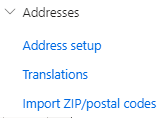
-
- You can setup countries details in your address.
- And the same for other components of the address format you have created in step 1.

Translation
Do you know that you can setup translation for address information, so that the information appears in your user language (system language) in Microsoft Finance and Operations apps but in another language on documents such as sales orders! You can enter translations for country/region names, addresses, and name sequences.

Registration types
In the registration types section
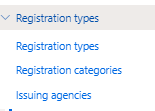
You can define registrations types of any kind of party even person or organisation like “Value added tax registration number, Income tax , Insurance authority number , investment authority , commercial register number , personal ID……etc.” ,
Not only that , you can also categorize the registrations records by the supported categories in the system that help in verify and check the correctness of the registration type and also help in reporting purposes.
You can only use it if your country is supported with registration categories. “so here check Microsoft documents for supported registration categories.”
Remember This Point
Each party can have more than one party role like “Customer and Vendor “ and each role can have more than address that you can deal with , like one for official document as the headquarter , another for invoicing purposes and so on , So in order to that registration types will be linked on the system with addresses “ in a party address fast tab click advanced and you will find where to record registration types.
By Updating registration categories and it’s issuing agencies, we are completed by all the Global address book configuration.
See you in a new blog for the process of recording and using the Global Address Book.
Don’t Forget to share your configuration experience in this field in the comments and share this topic with your colleagues.
